
- Shorter Loop Help Center
- Gettting Started
- Dashboard
- Using "Guide Me" to Build or Continue Your Strategy Spine
- How do I build my first strategy spine with the guided tour?
- How do I connect a data source to a KPI or tile?
- How do I create and manage dashboards in Shorter Loop?
- How do I rearrange my dashboard layout?
- How do I switch between dark and light mode in Shorter Loop?
- How do I track KPIs on a Shorter Loop dashboard?
- How do I use the Shorter Loop dashboard and themes?
- Shorter Loop dashboard FAQ: what are the common questions and fixes?
- What are role-based dashboards, and which one fits my role?
- What do I see when I join an existing workspace?
- What is the Shorter Loop dashboard, and what is on it?
- What is the Strategy Spine, and how do I read it?
- Where should I start in Shorter Loop?
- Which KPIs should I track for my business model?
- Which widgets can I add to a Shorter Loop dashboard?
- Who can see my dashboard, and how do I share it?
- Capabilites
- Beyond the Double Diamond: The Ultimate End-to-End Product Management Framework with Shorter Loop
- Discover
- How to start with Product Discovery?
- Feedback Manager: Powerful New Dashboard, Advanced Insights & Seamless Integration
- Product Vision
- How do I access the Product Vision Canvas in Shorter Loop?
- How do I create and manage personas directly from the Product Vision Canvas?
- What are the key components of an effective Product Vision Canvas?
- What are Connected Canvases and how do they work in Shorter Loop?
- How do I unlink target groups from personas, and what are the implications?
- How does the AI-powered content generation work in the Product Vision Canvas?
- How do I define the 'Product' section of the Product Vision Canvas?
- How do I set effective 'Business Objectives' in the Product Vision Canvas?
- How should I structure my Vision Statement for maximum impact?
- How do I collaborate effectively with my team using the Product Vision Canvas?
- How do I measure the success and impact of my Product Vision Canvas?
- How can I use colors to highlight and organize cards in the Product Vision Canvas?
- User Persona
- How do I access and navigate the User Persona Canvas in Shorter Loop?
- How do I create a new User Persona from scratch?
- How do I add and customize demographic fields for my persona?
- What is the recommended sequence for completing persona key elements?
- How do I create Value Proposition that address my personal needs?
- How do I upload attachments and research files to generate automated insights?
- How do I share and export User Personas with my team?
- How to create strategic opportunities from my User Persona insights?
- How do I effectively name and organize User Personas?
- Business Model
- How do I access and start creating my Business Model Canvas in Shorter Loop?
- Can I collaborate with my team on the same Business Model Canvas?
- How does the Business Model Canvas integrate with other Shorter Loop discovery tools?
- What's the difference between the Canvas, Notes, and Experiments tabs in the Business Model section?
- How do I use the "+ ADD" buttons effectively to build comprehensive business model sections
- Can I export or share my Business Model Canvas with investors and stakeholders?
- How does Shorter Loop's Business Model Canvas help me identify new revenue opportunities?
- What makes Shorter Loop's Business Model Canvas different from free alternatives like Strategyzer?
- How do I connect my User Persona Canvas with the Business Model Canvas?
- Feedback Manager
- How do I access the Feedback Manager in Shorter Loop?
- What is Shorter Loop's Ideas & Issues system and how does it organize feedback?
- What does the main Feedback Manager dashboard show me?
- How do I turn ideas and issues into actionable work items?
- How do I disconnect or unlink work items from ideas?
- What information can I see in the work item quick view?
- How do I filter and sort ideas and issues?
- How do I create new ideas and issues?
- How does voting work in the Feedback Manager?
- What makes Shorter Loop's connected canvas approach unique?
- How do I manage categories and organize feedback effectively?
- What are Collections and how do they help organize feedback?
- How does AI-powered collection generation work?
- How do I create custom collections manually?
- What can I do within a collection page?
- How do I publish and manage collection visibility?
- How does the AI summarization feature work?
- How do I create opportunities from collection insights?
- How does the "Identify more opportunities" feature work?
- What types of opportunities does the AI identify?
- How do I convert AI-identified opportunities into actionable work item?
- How does opportunity status tracking work in Shorter Loop?
- How does the "Connect to work item" feature integrate with product backlogs?
- What makes Shorter Loop's opportunity identification unique?
- How do I manage settings for my Feedback Portal, including custom domains and categories?
- How do I control and customize the status of Ideas and Issues in Shorter Loop?
- How can I import existing feedback and invite users to the Feedback Portal?
- How do I manage and utilize User Segments in Shorter Loop?
- How do I manage my Shorter Loop profile, connect Slack, and view my voting activity?
- Can I be a member of multiple Feedback Manager portals with on email address?
- Where can you configure status behavior for Ideas and Issues in Feedback Manager?
- Account Manager
- Feedback Insights
- Strategize
- Objectives
- How do I define an experiment's hypothesis and success criteria?
- How do I set up and track Key Results (OKRs) for an Objective?
- How do I access the Product Strategy board to get started?
- How do I navigate between my Objectives, Opportunities, Solutions, and Experiments?
- What are the different ways I can view and edit the details of a strategic item?
- How do I create my first Objective?
- How do I set the strategic "Alignment" to show an Objective's priority?
- How do I assign Owners and Teams to ensure accountability?
- What are "Themes" and how can I use them to organize my strategy?
- How can I add attachments or web links for more context?
- How do I link an Opportunity to an Objective?
- How can I see all the work (Opportunities, Solutions, etc.) related to one Objective?
- What is the Opportunities Map and how do I use it to visualize my strategy?
- How can I view and manage all experiments related to an objective?
- How do I update the status of an experiment?
- How can I see key details like budget and due date on an experiment card?
- How can I visually track the progress of all work related to an Objective?
- How can my team collaborate and discuss a specific Objective?
- How can I use the "Notes" tab for documentation?
- How can I filter my Strategy Board to find specific items?
- How can I see the financial upside of an Opportunity?
- What do the "Spread" and "Intensity" metrics on an Opportunity mean?
- How do I share or delete a strategic item?
- How do I use Storymaps and connect my strategy to my roadmap?
- Opportunities
- How do I navigate to and access Opportunities in Shorter Loop?
- What is an Opportunity in Shorter Loop and how does it drive product strategy?
- How do I create a new Opportunity in Shorter Loop?
- How to Score and Prioritize Opportunities in Shorter Loop
- How do I edit and update Opportunities in Shorter Loop?
- How do I assign ownership and team responsibility for Opportunities?
- How do I add comprehensive details to Opportunities including description, priority, and status?
- How do I connect Opportunities to strategic objectives and maintain strategic alignment?
- What is the difference between Opportunities and Objectives in Shorter Loop's strategic framework?
- What happens when I delete an Opportunity and can it be restored?
- Solution
- Strategy Builder
- What is the Strategy Map in Shorter Loop?
- How do I navigate to and access the Strategy Builder in Shorter Loop?
- How do I view and explore item details on the Strategy Builder?
- How to search nodes in Strategy Builder
- Navigating the Canvas of Strategy Builder
- How to Add New Items in Strategy Builder
- Linking Existing Items (Reparenting) in Strategy Builder
- Deleting Items in Strategy Builder
- Node Card Actions in Strategy Builder
- Node Types and Their Cards in Strategy Builder
- Exporting the Strategy
- Key Results (KPIs/Metrics) in Strategy Builder
- Scoped Views (Strategy Builder Tab under Product Strategy)
- Hierarchy Rules
- Dragging and Positioning Nodes
- Opening Detail Pages from Strategy Builder
- Delete and Automatic Reparenting
- Autocomplete Behavior
- Loading States
- Empty and Error States
- Confirmation Dialogs
- Tips and Best Practices
- Collapse and Expand Subtrees
- Filtering by Type and Status
- Connection Path Labels
- Inline Title Editing
- Minimap
- Edge Disconnect
- Product Tour
- How to take Quicker Actions on Strategy Builder Cards?
- Objectives
- Roadmaps
- How do I add a band (swimlane) to my roadmap?
- How do I add a time box (column) to my roadmap?
- How do I add an objective lane to a roadmap?
- How do I change a time box’s start and end dates?
- How do I collapse a band, and why does my board look empty afterwards?
- How do I change the colour of a card, band or objective lane?
- How do I create a roadmap in Shorter Loop?
- How do I create an organization roadmap?
- How do I create organization themes?
- How do I delete a roadmap, and what happens to the work on it?
- How do I delete a time box, and what happens to the work in it?
- Where do I find my roadmaps?
- How do I get out of the theme drill-down?
- How do I move a card to a different time box?
- How do I move work from one roadmap to another?
- How do I nest a feature under an epic (or a solution under an opportunity)?
- How do I put work on the roadmap?
- How do I take a card off the roadmap without deleting it?
- How do I rename a band, an objective lane, or the roadmap itself?
- How do I rename a roadmap?
- How do I rename a time box?
- How do I search, filter and sort the items I still need to place?
- How do I see a single theme across every product?
- How do I share a roadmap with someone?
- How do I shrink a spanning card back to one time box?
- How do I make a card cover more than one time box?
- How does a product’s work roll up into an organization theme?
- How does a spanning card appear in exports and counts?
- Shorter Loop Roadmap — Help Centre articles
- Roadmap FAQ: quick answers
- Roadmap glossary
- Roadmap keys, item keys and links: how do they work?
- Walkthrough: preparing an organization-level review
- Walkthrough: planning a quarter on a new roadmap
- What is the “Independent items” row, and why is it always there?
- What do the colours, badges and dots on a card mean?
- What does “SHOWING [product]” mean on the organization roadmap?
- What does the “dates don’t match” warning on a card mean?
- What is the percentage and item count on an objective lane?
- What happens if I delete an item that is on a roadmap?
- What happens to child items when I place an epic or an opportunity?
- What is an organization roadmap, and when do I need one?
- What is on the roadmap board? A guided tour of the screen
- What is the “All products” view, and why can’t I edit it?
- What do the All, Strategy and Build buttons do?
- What is the Tour button, and what does it cover?
- What is the Shorter Loop roadmap, and what does it actually show?
- What’s in the Excel export?
- What’s in the PDF export?
- Where is the backlog panel, and how do I open it?
- Which items can span several time boxes, and which can’t?
- Now · Next · Later or Fixed Time Boxes: which roadmap type should I pick?
- Why can’t I change a roadmap from Now · Next · Later to Fixed Time Boxes?
- Why can’t I drag anything on this board?
- Why can’t I add or edit time boxes on the organization roadmap?
- Why can’t I find an item in the backlog panel?
- Why can’t I see the organization roadmap?
- Why can’t I stretch a card into a particular time box?
- Why did a card disappear from my roadmap?
- Why is my roadmap board empty?
- Why won’t my time box save?
- Using Shorter Loop
- How to Create a Strategy Board in Shorter Loop?
- Does Shorter Loop Support Other weight-based prioritization methods, such as customizing the weights other than effort/value, spread intensity, RICE, etc.?
- Does Shorter Loop provide migration assistance?
- How to Build a Product Backlog?
- Persona Canvas: Understand Your Target Users
- How to create a Prioritization Matrix? - Shorter Loop
- How to create a User Story Map? - Shorter Loop
- How to Create a Document in Shorter Loop? - Shorter Loop
- How to Collaborate on Digital Whiteboard?
- How to Use Idea Manager in an End-to-End Product Journey?
- How to view the version history?
- How to Share or Delete the particular Whiteboard?
- How to start with Product Discovery? - Shorter Loop
- Product Integrations
- Shorter Loop Integrations — Now Smarter, Safer, and Easier to Control
- Faster Workflows, Stronger Integrations — What's New in Shorter Loop
- Jira
- Jira Integration: 2-Way Sync Between Jira & Shorter Loop for Product Teams
- Why is Shorter Loop a more comprehensive product management solution than Jira?
- Can feedback be linked to the original Sprint ticket from which the idea was generated?
- Is there a way to bucketize items by status, like in progress, testing, etc.?
- How to reopen closed work items and tickets in Shorter Loop and Jira integration?
- If I have editor access in Shorter Loop but not in JIRA, can I still access or make changes in JIRA through Shorter Loop?
- If I have access to JIRA but not Shorter Loop, and make changes in JIRA, will it reflect in Shorter Loop?
- Shouldn't we categorize an issue into development only after linking it to JIRA?
- So, if we raise an issue in Shorter Loop, will it go and become a ticket in JIRA?
- Is it possible to see the Jira status of the work item in Shorter Loop?
- Does the change in status in Shorter Loop make the changes in Jira?
- How to fix Jira API token authentication issues in Shorter Loop integration?
- Does Shorter Loop provide nesting like Jira?
- Is there a visual way to see parent-child work items (like nesting in Jira) at once in Shorter Loop (like a board)?
- Does Shorter Loop provide freedom to create multiple levels of hierarchy (nesting) in Product Backlog?
- What’s the difference between nesting in Jira and Shorter Loop?
- What changes appear in Jira if you delete any work item from Shorter Loop’s Backlog?
- How to manually create JIRA Webhooks for Shorter Loop
- GitHub
- Intercom
- HubSpot
- Linear
- ServiceNow
- Rally
- Zendesk
- Brevo
- Azure DevOps
- APIs and Webhooks
- Canny
- Productboard
- Prodpad
- Freshdesk
- Helpscout
- Zeda
- Pendo
- Craft.io
- Aha
- Salesforce
- Slack
- Account Settings
- Permissions & Invitation Flows Across Subscription, Product, and Team Hierarchy
- How Access Works in Shorter Loop
- Billing & plan management
- How to Upgrade Your Trial to an Active Plan
- Can I change my subscription plan after the trial?
- What happens to my product discovery data during plan changes?
- How does seat billing work for teams?
- Can I pause my Shorter Loop subscription?
- What are the feature limits and restrictions for each plan?
- How to Upgrade to a Paid Plan? - Shorter Loop
- How to Upgrade to a Paid Plan?
- How do I increase the number of seats on my subscription?
- Subscription & Billing Enhancements in Shorter Loop
- Profile Management
- Subscription
- How to access Subscription Settings in Shorter Loop dashboard?
- What information is displayed in the Subscription Summary section?
- How to add new products to your Shorter Loop subscription?
- How to manage users and assign roles in your Shorter Loop subscription?
- How to view and manage your subscription plan details?
- How to manage AI & Storage in your Shorter Loop subscription?
- What user roles are available in Shorter Loop and what are their permissions?
- How to change your subscription name and logo in Shorter Loop?
- What user roles are available in Shorter Loop and what are their permissions?
- How to update payment methods and view billing history in Shorter Loop?
- How to upgrade or downgrade your Shorter Loop subscription plan?
- How to remove or deactivate users from your Shorter Loop subscription?
- What happens when you reach your AI & Storage limit in Shorter Loop?
- What are the image requirements for profile photos in Subscription Settings?
- How to Accept a Team Invitation and Access Your Account
- Product
- How to access Product Settings and manage product-specific configurations?
- What information is displayed in the Product Summary section?
- How to manage users and assign roles within a specific product?
- How does product-level AI & Storage management work compared to subscription-level?
- What happens when you invite new members to a product vs the subscription?
- How to Purge, Restore, and Permanently Purge Data in Shorter Loop?
- Team
- How to access and navigate to team management in Shorter Loop?
- How to create and manage teams within a product?
- How to manage team members and assign roles within a specific team?
- How to invite new members to a team and manage bulk operations?
- How to delete teams and understand the impact on work items?
- User
- How to edit and update your user profile settings in Shorter Loop?
- How to change your email address in Shorter Loop account settings?
- What is the difference between Display Name and Full Name in Shorter Loop profile settings?
- How to change your password in Shorter Loop dashboard after login?
- How to upload and change your profile picture in Shorter Loop?
- How do I submit a question or feedback from within Shorter Loop?
- Subscription
- Team Management
- Adding New Members to Your Shorter Loop
- What are the different user roles in Shorter Loop and what permissions does each role have?
- How do I invite new members to my Shorter Loop account?
- How do I change a team member's role or permissions?
- How do I add members to specific products in my subscription?
- How do I manage team members within a specific team?
- How do I view and manage all members in my account?
- What's the difference between subscription-level and product-level member access?
- How do I deactivate or reactivate team members?
- Can the same person have different roles in different products or teams?
- What happens when I invite someone who's already in my subscription to a new product or team?
- Can a subscription member be part of multiple Shorter Loop subscriptions?
- Recycle Bin
- Security
- Two factor authentication
- Two-factor authentication and sign-in security
- Set up an authenticator app
- Reset a member's two-factor authentication
- Require two-factor authentication for your company
- Company sign-in security settings
- Troubleshooting and questions
- When your company requires two-factor authentication
- Security emails
- Your sessions
- Your security log
- The checkup and the passkey suggestion
- Confirm it's you
- Manage your two-factor methods
- Sign in with a passkey
- Signing in with two-factor authentication
- Recovery codes
- Add a passkey or a security key
- Two-factor authentication in Shorter Loop
- SSO Saml
- Two factor authentication
Two-factor authentication in Shorter Loop
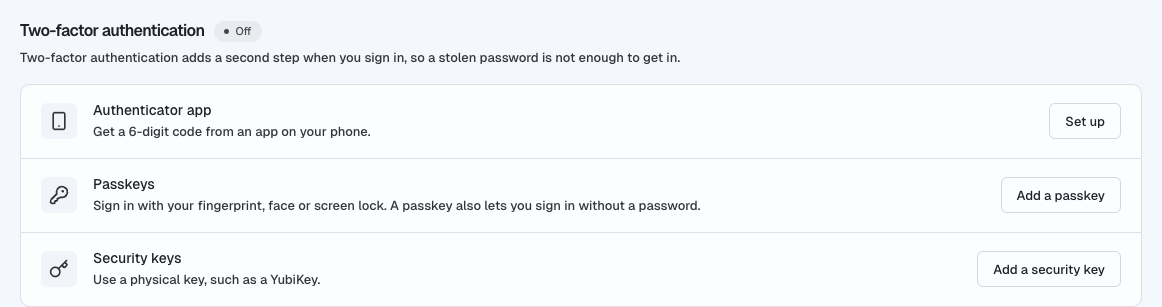
Where to find it#
1.
2.
The methods you can use#
| Method | What you need | Good to know |
|---|---|---|
| Authenticator app | An app on your phone, such as Google Authenticator, Microsoft Authenticator or 1Password | It shows a new 6-digit code every 30 seconds. You can have one app at a time. See Set up an authenticator app. |
| Passkeys | Your fingerprint, face or screen lock (for example Touch ID, Face ID or Windows Hello) | A passkey also lets you sign in without a password. You can add several. See Add a passkey or a security key. |
| Security keys | A physical key, such as a YubiKey | You can add several. |
| Recovery codes | Nothing; you save 16 one-time codes | For when you lose your other methods. They appear once you have turned on another method. See Recovery codes. |
Passkeys and security keys only appear when your browser supports them and you are on the main Shorter Loop address. If your company uses its own web address for Shorter Loop, you can use an authenticator app and recovery codes there.
Which sign-ins ask for the second step#
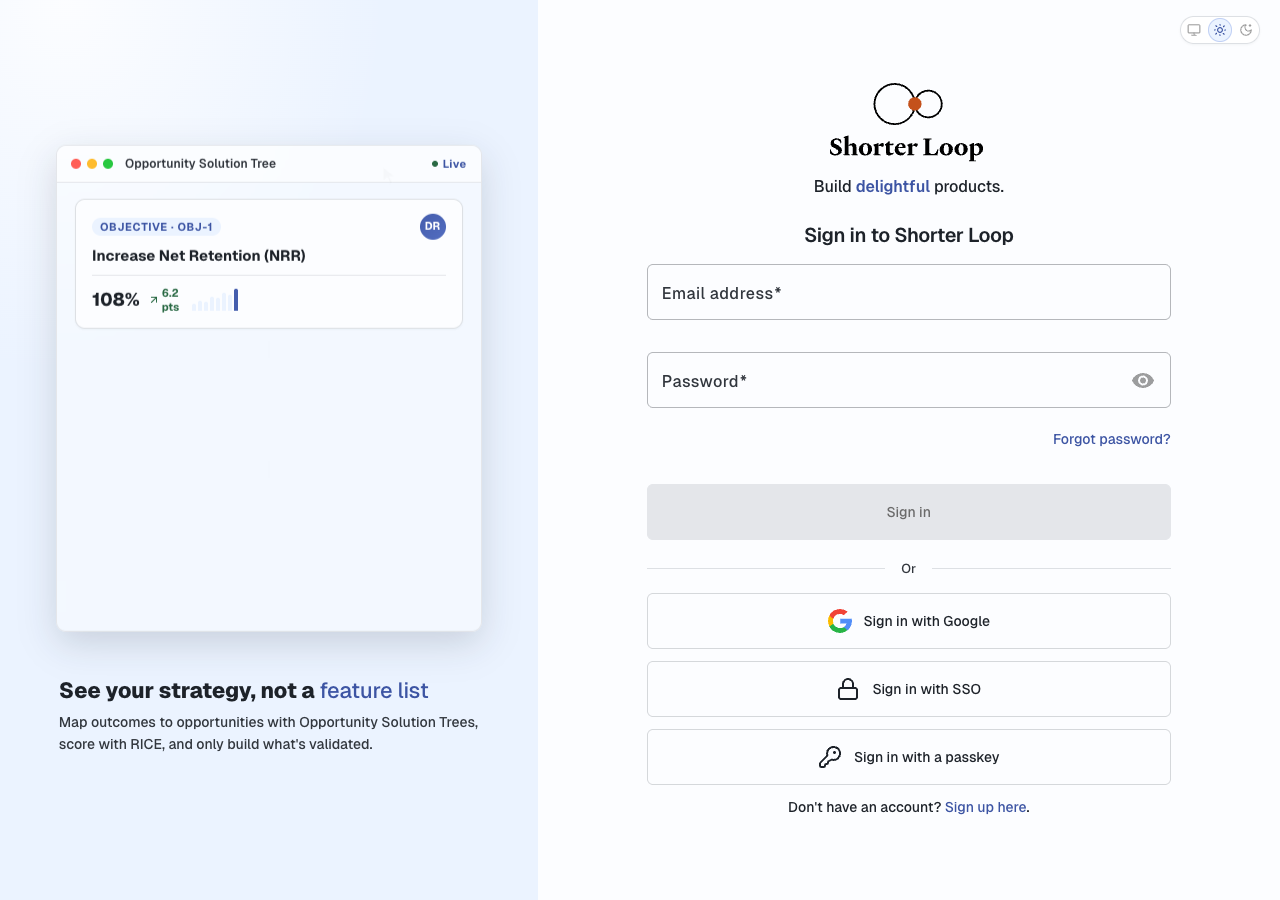
| How you sign in | Second step? |
|---|---|
| Email and password | Yes |
| Google, LinkedIn or Google One Tap | Yes |
| A 6-digit code sent to your email | Yes |
| Company single sign-on (SAML, Okta, Entra ID, Google Workspace) | No. Your company's identity provider already checks you, often with its own second step. |
| A passkey | No. A passkey already proves two things: you have the device, and you unlocked it. |
Words used in these articles#
| Word | Meaning |
|---|---|
| Second step | The page after your password that asks for a code or your key. |
| Method | One way to do the second step: your authenticator app, a passkey, a security key or a recovery code. |
| Preferred method | The method the second step offers first. You can still pick another one. |
| Session | One browser that is signed in to your account. |
| Confirm it's you | A short check before a security change, even when you are already signed in. See Confirm it's you. |
| Security log | Your own list of sign-ins and security changes. |
Related#
Modified at 2026-11-09 10:04:22