
- Shorter Loop Help Center
- Gettting Started
- Dashboard
- Using "Guide Me" to Build or Continue Your Strategy Spine
- How do I build my first strategy spine with the guided tour?
- How do I connect a data source to a KPI or tile?
- How do I create and manage dashboards in Shorter Loop?
- How do I rearrange my dashboard layout?
- How do I switch between dark and light mode in Shorter Loop?
- How do I track KPIs on a Shorter Loop dashboard?
- How do I use the Shorter Loop dashboard and themes?
- Shorter Loop dashboard FAQ: what are the common questions and fixes?
- What are role-based dashboards, and which one fits my role?
- What do I see when I join an existing workspace?
- What is the Shorter Loop dashboard, and what is on it?
- What is the Strategy Spine, and how do I read it?
- Where should I start in Shorter Loop?
- Which KPIs should I track for my business model?
- Which widgets can I add to a Shorter Loop dashboard?
- Who can see my dashboard, and how do I share it?
- Capabilites
- Beyond the Double Diamond: The Ultimate End-to-End Product Management Framework with Shorter Loop
- Discover
- How to start with Product Discovery?
- Feedback Manager: Powerful New Dashboard, Advanced Insights & Seamless Integration
- Product Vision
- How do I access the Product Vision Canvas in Shorter Loop?
- How do I create and manage personas directly from the Product Vision Canvas?
- What are the key components of an effective Product Vision Canvas?
- What are Connected Canvases and how do they work in Shorter Loop?
- How do I unlink target groups from personas, and what are the implications?
- How does the AI-powered content generation work in the Product Vision Canvas?
- How do I define the 'Product' section of the Product Vision Canvas?
- How do I set effective 'Business Objectives' in the Product Vision Canvas?
- How should I structure my Vision Statement for maximum impact?
- How do I collaborate effectively with my team using the Product Vision Canvas?
- How do I measure the success and impact of my Product Vision Canvas?
- How can I use colors to highlight and organize cards in the Product Vision Canvas?
- User Persona
- How do I access and navigate the User Persona Canvas in Shorter Loop?
- How do I create a new User Persona from scratch?
- How do I add and customize demographic fields for my persona?
- What is the recommended sequence for completing persona key elements?
- How do I create Value Proposition that address my personal needs?
- How do I upload attachments and research files to generate automated insights?
- How do I share and export User Personas with my team?
- How to create strategic opportunities from my User Persona insights?
- How do I effectively name and organize User Personas?
- Business Model
- How do I access and start creating my Business Model Canvas in Shorter Loop?
- Can I collaborate with my team on the same Business Model Canvas?
- How does the Business Model Canvas integrate with other Shorter Loop discovery tools?
- What's the difference between the Canvas, Notes, and Experiments tabs in the Business Model section?
- How do I use the "+ ADD" buttons effectively to build comprehensive business model sections
- Can I export or share my Business Model Canvas with investors and stakeholders?
- How does Shorter Loop's Business Model Canvas help me identify new revenue opportunities?
- What makes Shorter Loop's Business Model Canvas different from free alternatives like Strategyzer?
- How do I connect my User Persona Canvas with the Business Model Canvas?
- Feedback Manager
- How do I access the Feedback Manager in Shorter Loop?
- What is Shorter Loop's Ideas & Issues system and how does it organize feedback?
- What does the main Feedback Manager dashboard show me?
- How do I turn ideas and issues into actionable work items?
- How do I disconnect or unlink work items from ideas?
- What information can I see in the work item quick view?
- How do I filter and sort ideas and issues?
- How do I create new ideas and issues?
- How does voting work in the Feedback Manager?
- What makes Shorter Loop's connected canvas approach unique?
- How do I manage categories and organize feedback effectively?
- What are Collections and how do they help organize feedback?
- How does AI-powered collection generation work?
- How do I create custom collections manually?
- What can I do within a collection page?
- How do I publish and manage collection visibility?
- How does the AI summarization feature work?
- How do I create opportunities from collection insights?
- How does the "Identify more opportunities" feature work?
- What types of opportunities does the AI identify?
- How do I convert AI-identified opportunities into actionable work item?
- How does opportunity status tracking work in Shorter Loop?
- How does the "Connect to work item" feature integrate with product backlogs?
- What makes Shorter Loop's opportunity identification unique?
- How do I manage settings for my Feedback Portal, including custom domains and categories?
- How do I control and customize the status of Ideas and Issues in Shorter Loop?
- How can I import existing feedback and invite users to the Feedback Portal?
- How do I manage and utilize User Segments in Shorter Loop?
- How do I manage my Shorter Loop profile, connect Slack, and view my voting activity?
- Can I be a member of multiple Feedback Manager portals with on email address?
- Where can you configure status behavior for Ideas and Issues in Feedback Manager?
- Account Manager
- Feedback Insights
- Strategize
- Objectives
- How do I define an experiment's hypothesis and success criteria?
- How do I set up and track Key Results (OKRs) for an Objective?
- How do I access the Product Strategy board to get started?
- How do I navigate between my Objectives, Opportunities, Solutions, and Experiments?
- What are the different ways I can view and edit the details of a strategic item?
- How do I create my first Objective?
- How do I set the strategic "Alignment" to show an Objective's priority?
- How do I assign Owners and Teams to ensure accountability?
- What are "Themes" and how can I use them to organize my strategy?
- How can I add attachments or web links for more context?
- How do I link an Opportunity to an Objective?
- How can I see all the work (Opportunities, Solutions, etc.) related to one Objective?
- What is the Opportunities Map and how do I use it to visualize my strategy?
- How can I view and manage all experiments related to an objective?
- How do I update the status of an experiment?
- How can I see key details like budget and due date on an experiment card?
- How can I visually track the progress of all work related to an Objective?
- How can my team collaborate and discuss a specific Objective?
- How can I use the "Notes" tab for documentation?
- How can I filter my Strategy Board to find specific items?
- How can I see the financial upside of an Opportunity?
- What do the "Spread" and "Intensity" metrics on an Opportunity mean?
- How do I share or delete a strategic item?
- How do I use Storymaps and connect my strategy to my roadmap?
- Opportunities
- How do I navigate to and access Opportunities in Shorter Loop?
- What is an Opportunity in Shorter Loop and how does it drive product strategy?
- How do I create a new Opportunity in Shorter Loop?
- How to Score and Prioritize Opportunities in Shorter Loop
- How do I edit and update Opportunities in Shorter Loop?
- How do I assign ownership and team responsibility for Opportunities?
- How do I add comprehensive details to Opportunities including description, priority, and status?
- How do I connect Opportunities to strategic objectives and maintain strategic alignment?
- What is the difference between Opportunities and Objectives in Shorter Loop's strategic framework?
- What happens when I delete an Opportunity and can it be restored?
- Solution
- Strategy Builder
- What is the Strategy Map in Shorter Loop?
- How do I navigate to and access the Strategy Builder in Shorter Loop?
- How do I view and explore item details on the Strategy Builder?
- How to search nodes in Strategy Builder
- Navigating the Canvas of Strategy Builder
- How to Add New Items in Strategy Builder
- Linking Existing Items (Reparenting) in Strategy Builder
- Deleting Items in Strategy Builder
- Node Card Actions in Strategy Builder
- Node Types and Their Cards in Strategy Builder
- Exporting the Strategy
- Key Results (KPIs/Metrics) in Strategy Builder
- Scoped Views (Strategy Builder Tab under Product Strategy)
- Hierarchy Rules
- Dragging and Positioning Nodes
- Opening Detail Pages from Strategy Builder
- Delete and Automatic Reparenting
- Autocomplete Behavior
- Loading States
- Empty and Error States
- Confirmation Dialogs
- Tips and Best Practices
- Collapse and Expand Subtrees
- Filtering by Type and Status
- Connection Path Labels
- Inline Title Editing
- Minimap
- Edge Disconnect
- Product Tour
- How to take Quicker Actions on Strategy Builder Cards?
- Objectives
- Roadmaps
- How do I add a band (swimlane) to my roadmap?
- How do I add a time box (column) to my roadmap?
- How do I add an objective lane to a roadmap?
- How do I change a time box’s start and end dates?
- How do I collapse a band, and why does my board look empty afterwards?
- How do I change the colour of a card, band or objective lane?
- How do I create a roadmap in Shorter Loop?
- How do I create an organization roadmap?
- How do I create organization themes?
- How do I delete a roadmap, and what happens to the work on it?
- How do I delete a time box, and what happens to the work in it?
- Where do I find my roadmaps?
- How do I get out of the theme drill-down?
- How do I move a card to a different time box?
- How do I move work from one roadmap to another?
- How do I nest a feature under an epic (or a solution under an opportunity)?
- How do I put work on the roadmap?
- How do I take a card off the roadmap without deleting it?
- How do I rename a band, an objective lane, or the roadmap itself?
- How do I rename a roadmap?
- How do I rename a time box?
- How do I search, filter and sort the items I still need to place?
- How do I see a single theme across every product?
- How do I share a roadmap with someone?
- How do I shrink a spanning card back to one time box?
- How do I make a card cover more than one time box?
- How does a product’s work roll up into an organization theme?
- How does a spanning card appear in exports and counts?
- Shorter Loop Roadmap — Help Centre articles
- Roadmap FAQ: quick answers
- Roadmap glossary
- Roadmap keys, item keys and links: how do they work?
- Walkthrough: preparing an organization-level review
- Walkthrough: planning a quarter on a new roadmap
- What is the “Independent items” row, and why is it always there?
- What do the colours, badges and dots on a card mean?
- What does “SHOWING [product]” mean on the organization roadmap?
- What does the “dates don’t match” warning on a card mean?
- What is the percentage and item count on an objective lane?
- What happens if I delete an item that is on a roadmap?
- What happens to child items when I place an epic or an opportunity?
- What is an organization roadmap, and when do I need one?
- What is on the roadmap board? A guided tour of the screen
- What is the “All products” view, and why can’t I edit it?
- What do the All, Strategy and Build buttons do?
- What is the Tour button, and what does it cover?
- What is the Shorter Loop roadmap, and what does it actually show?
- What’s in the Excel export?
- What’s in the PDF export?
- Where is the backlog panel, and how do I open it?
- Which items can span several time boxes, and which can’t?
- Now · Next · Later or Fixed Time Boxes: which roadmap type should I pick?
- Why can’t I change a roadmap from Now · Next · Later to Fixed Time Boxes?
- Why can’t I drag anything on this board?
- Why can’t I add or edit time boxes on the organization roadmap?
- Why can’t I find an item in the backlog panel?
- Why can’t I see the organization roadmap?
- Why can’t I stretch a card into a particular time box?
- Why did a card disappear from my roadmap?
- Why is my roadmap board empty?
- Why won’t my time box save?
- Using Shorter Loop
- How to Create a Strategy Board in Shorter Loop?
- Does Shorter Loop Support Other weight-based prioritization methods, such as customizing the weights other than effort/value, spread intensity, RICE, etc.?
- Does Shorter Loop provide migration assistance?
- How to Build a Product Backlog?
- Persona Canvas: Understand Your Target Users
- How to create a Prioritization Matrix? - Shorter Loop
- How to create a User Story Map? - Shorter Loop
- How to Create a Document in Shorter Loop? - Shorter Loop
- How to Collaborate on Digital Whiteboard?
- How to Use Idea Manager in an End-to-End Product Journey?
- How to view the version history?
- How to Share or Delete the particular Whiteboard?
- How to start with Product Discovery? - Shorter Loop
- Product Integrations
- Shorter Loop Integrations — Now Smarter, Safer, and Easier to Control
- Faster Workflows, Stronger Integrations — What's New in Shorter Loop
- Jira
- Jira Integration: 2-Way Sync Between Jira & Shorter Loop for Product Teams
- Why is Shorter Loop a more comprehensive product management solution than Jira?
- Can feedback be linked to the original Sprint ticket from which the idea was generated?
- Is there a way to bucketize items by status, like in progress, testing, etc.?
- How to reopen closed work items and tickets in Shorter Loop and Jira integration?
- If I have editor access in Shorter Loop but not in JIRA, can I still access or make changes in JIRA through Shorter Loop?
- If I have access to JIRA but not Shorter Loop, and make changes in JIRA, will it reflect in Shorter Loop?
- Shouldn't we categorize an issue into development only after linking it to JIRA?
- So, if we raise an issue in Shorter Loop, will it go and become a ticket in JIRA?
- Is it possible to see the Jira status of the work item in Shorter Loop?
- Does the change in status in Shorter Loop make the changes in Jira?
- How to fix Jira API token authentication issues in Shorter Loop integration?
- Does Shorter Loop provide nesting like Jira?
- Is there a visual way to see parent-child work items (like nesting in Jira) at once in Shorter Loop (like a board)?
- Does Shorter Loop provide freedom to create multiple levels of hierarchy (nesting) in Product Backlog?
- What’s the difference between nesting in Jira and Shorter Loop?
- What changes appear in Jira if you delete any work item from Shorter Loop’s Backlog?
- How to manually create JIRA Webhooks for Shorter Loop
- GitHub
- Intercom
- HubSpot
- Linear
- ServiceNow
- Rally
- Zendesk
- Brevo
- Azure DevOps
- APIs and Webhooks
- Canny
- Productboard
- Prodpad
- Freshdesk
- Helpscout
- Zeda
- Pendo
- Craft.io
- Aha
- Salesforce
- Slack
- Account Settings
- Permissions & Invitation Flows Across Subscription, Product, and Team Hierarchy
- How Access Works in Shorter Loop
- Billing & plan management
- How to Upgrade Your Trial to an Active Plan
- Can I change my subscription plan after the trial?
- What happens to my product discovery data during plan changes?
- How does seat billing work for teams?
- Can I pause my Shorter Loop subscription?
- What are the feature limits and restrictions for each plan?
- How to Upgrade to a Paid Plan? - Shorter Loop
- How to Upgrade to a Paid Plan?
- How do I increase the number of seats on my subscription?
- Subscription & Billing Enhancements in Shorter Loop
- Profile Management
- Subscription
- How to access Subscription Settings in Shorter Loop dashboard?
- What information is displayed in the Subscription Summary section?
- How to add new products to your Shorter Loop subscription?
- How to manage users and assign roles in your Shorter Loop subscription?
- How to view and manage your subscription plan details?
- How to manage AI & Storage in your Shorter Loop subscription?
- What user roles are available in Shorter Loop and what are their permissions?
- How to change your subscription name and logo in Shorter Loop?
- What user roles are available in Shorter Loop and what are their permissions?
- How to update payment methods and view billing history in Shorter Loop?
- How to upgrade or downgrade your Shorter Loop subscription plan?
- How to remove or deactivate users from your Shorter Loop subscription?
- What happens when you reach your AI & Storage limit in Shorter Loop?
- What are the image requirements for profile photos in Subscription Settings?
- How to Accept a Team Invitation and Access Your Account
- Product
- How to access Product Settings and manage product-specific configurations?
- What information is displayed in the Product Summary section?
- How to manage users and assign roles within a specific product?
- How does product-level AI & Storage management work compared to subscription-level?
- What happens when you invite new members to a product vs the subscription?
- How to Purge, Restore, and Permanently Purge Data in Shorter Loop?
- Team
- How to access and navigate to team management in Shorter Loop?
- How to create and manage teams within a product?
- How to manage team members and assign roles within a specific team?
- How to invite new members to a team and manage bulk operations?
- How to delete teams and understand the impact on work items?
- User
- How to edit and update your user profile settings in Shorter Loop?
- How to change your email address in Shorter Loop account settings?
- What is the difference between Display Name and Full Name in Shorter Loop profile settings?
- How to change your password in Shorter Loop dashboard after login?
- How to upload and change your profile picture in Shorter Loop?
- How do I submit a question or feedback from within Shorter Loop?
- Subscription
- Team Management
- Adding New Members to Your Shorter Loop
- What are the different user roles in Shorter Loop and what permissions does each role have?
- How do I invite new members to my Shorter Loop account?
- How do I change a team member's role or permissions?
- How do I add members to specific products in my subscription?
- How do I manage team members within a specific team?
- How do I view and manage all members in my account?
- What's the difference between subscription-level and product-level member access?
- How do I deactivate or reactivate team members?
- Can the same person have different roles in different products or teams?
- What happens when I invite someone who's already in my subscription to a new product or team?
- Can a subscription member be part of multiple Shorter Loop subscriptions?
- Recycle Bin
- Security
- Two factor authentication
- Two-factor authentication and sign-in security
- Set up an authenticator app
- Reset a member's two-factor authentication
- Require two-factor authentication for your company
- Company sign-in security settings
- Troubleshooting and questions
- When your company requires two-factor authentication
- Security emails
- Your sessions
- Your security log
- The checkup and the passkey suggestion
- Confirm it's you
- Manage your two-factor methods
- Sign in with a passkey
- Signing in with two-factor authentication
- Recovery codes
- Add a passkey or a security key
- Two-factor authentication in Shorter Loop
- SSO Saml
- Two factor authentication
Confirm it's you
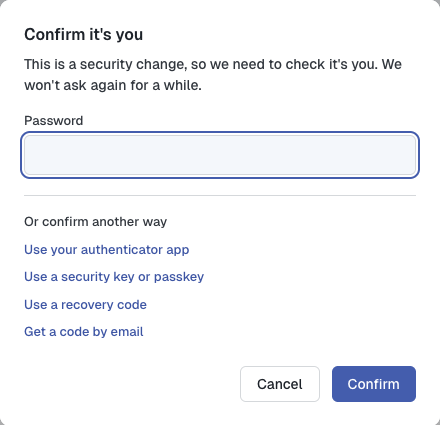
When you are asked#
| Where | Action |
|---|---|
| My profile → Two-factor authentication | Set up or change your authenticator app |
| Add a passkey or a security key | |
| Remove a method | |
| Show your recovery codes | |
| Make new recovery codes | |
| Turn off two-factor authentication | |
| My profile → Sessions | Sign out of all other sessions |
| Settings → Security → Sign-in security (admins) | Change a setting |
| Reset a member's two-factor authentication |
Ways to confirm#
| Option | What you do |
|---|---|
| Use your password | Type your Shorter Loop password. Only shown if your account has a password. |
| Use your authenticator app | Type the current 6-digit code. |
| Use a security key or passkey | Click Use security key and follow your browser. |
| Use a recovery code | Type an unused recovery code. It is then used up. |
| Get a code by email | Click Send code, then type the 6-digit code from the email. |
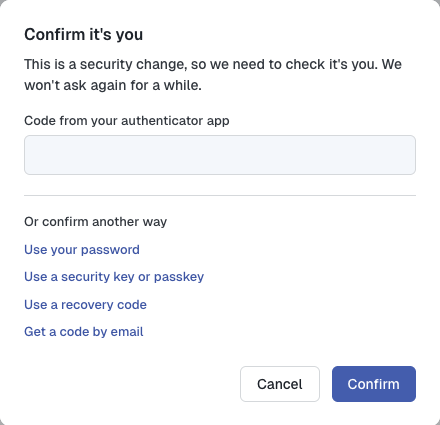
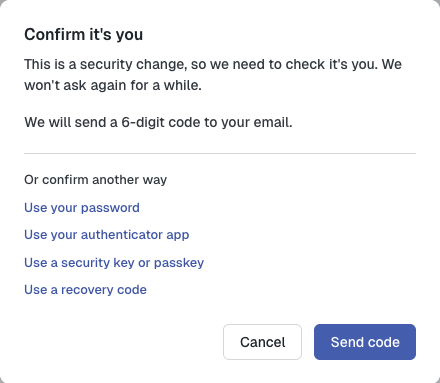
If it doesn't work#
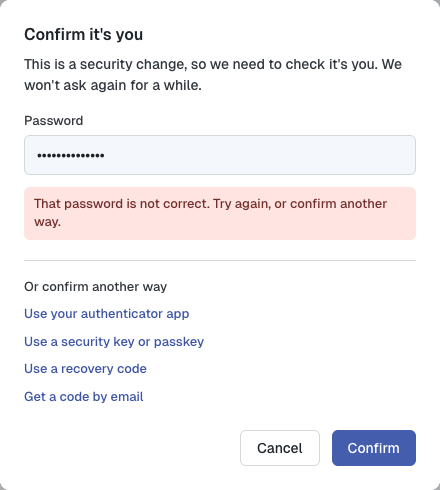
| What you see | What to do |
|---|---|
| That password is not correct. Try again, or confirm another way. | Retype it, or pick another way below. |
| That code did not work. Check the time on your phone and try again. | Wait for the next code from your app. |
| That code did not work. Check the latest email from us and try again. | Use the code from the newest email. Each new email replaces the code before it. |
| Too many wrong codes. Wait 15 minutes and try again. | Code checks are paused for 15 minutes after 10 wrong codes. |
| Sign in again to change security settings. | You signed in before this feature existed. Sign out, sign in again, and repeat the change. |
Related#
Modified at 2026-11-09 09:52:39